Two kinds of filter live on this page: looks keep your photograph and change its colour and mood; rebuilds remake it out of lines, dots, pixels or characters. The strip labels which is which, and nothing is uploaded.
What this lab is for
There is a line running through the middle of the word filter, and almost nobody draws it out loud. On one side sit the adjustments that leave a photograph exactly where it is and change what colour it is — warmer, cooler, flatter, moodier. On the other sit the operations that take the photograph apart and rebuild it out of a different material altogether. Printer’s dots. Two inks. Sixteen flat levels. A grid of typed characters. This lab does both, and keeps them on different tabs of the same strip: the colour looks come first, because that is what most people mean by a filter, and the rebuilds sit under Rebuild, because they are a different kind of decision.
The practical difference is what you can undo. A tonal change is reversible in principle: the information is still there, pushed around — which is why every look here has a strength you can drag back toward the photograph, and why strength 0 is the photograph exactly. A rebuild is not. Once a cell of your photograph has become one dot whose area stands for its average brightness, everything else that cell contained is gone, and no amount of care gets it back. That sounds like a warning and it is really a description of the appeal — these effects are strong because they throw things away, and the parameters below the canvas are almost all about deciding what to throw away and how.
| Effect | The unit it builds from | What decides that unit |
|---|---|---|
| Halftone | One mark per cell of a rotated grid | Cell size, dot shape, screen angle |
| Duotone | A position on a two-colour ramp | Two inks and where the midpoint falls |
| Dither | One palette colour plus a pattern | Palette size, method, pattern scale |
| Pixelate | A flat block of the mean colour | Block size and shape |
| Posterise | A step on a short per-channel scale | How many steps each channel gets |
| ASCII | A character standing for a patch | Column count and the character ramp |
Working through it
Open a picture and the lab lays it out the way a darkroom would: the photograph large in the middle, a contact strip of it underneath, and a panel on the right for everything that is a number. Nothing is behind a second click, and the save button is on screen from the first moment.
- The strip
- Every frame is your own photograph under a different look — 41 colour looks across Clean, Warm, Cool, Film, B&W, Fade, Vivid, Vintage, Moody, then the rebuilds and the colour finishes. The arrow keys move along it and the big picture follows. Star the ones you come back to and they wait under Favourites next time, on this device.
- Strength
- How much of the look you take, from 0 (the photograph, exactly) to 100 (the look as authored). Drag sideways anywhere on the picture to set it, type a number, or press 1 to 9 for 10% steps and 0 for full.
- Tone after the filter
- Exposure, contrast, highlights, shadows, saturation and warmth act on the filtered picture, so a look that is right except a little dark does not have to be abandoned. Reset filter takes the look away and leaves this tone alone; Reset tone does the opposite.
- Export
- PNG, JPG or WebP at the photograph's full size, with the exact output dimensions shown before you press the button. The rebuilds also offer a render scale for anyone who needs the dots to survive a printer. The file is rendered fresh from the original rather than enlarged from what is on screen.
Dragging a slider redraws a small draft so the picture keeps up with your hand; letting go recomputes the whole preview and lands one step on the undo stack. Hold the picture, the Hold button, the space bar or the \ key and the untouched photograph shows for as long as you hold it; Split lays it over half the frame instead. R shuffles to another look in the same family, the square brackets step a rebuild’s main parameter, and settings are kept per effect, so comparing a halftone against a dither and coming back costs you nothing.
Where would you like to start?
Choose the job you came for; everything is set before the page finishes loading.
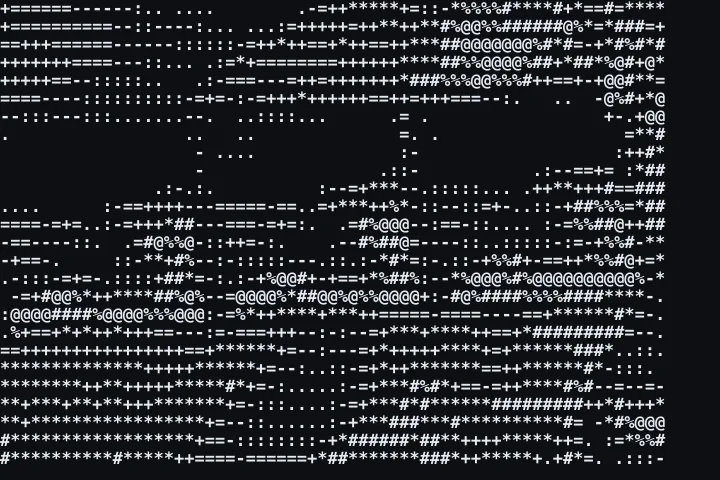 ASCIIDivide the picture into cells, measure each one, and print the character whose weight on the…
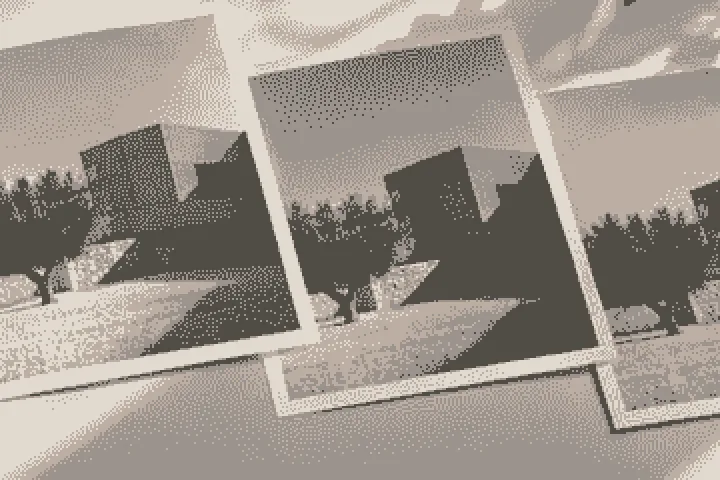 DitherYou have a photograph with millions of colours and a palette with two
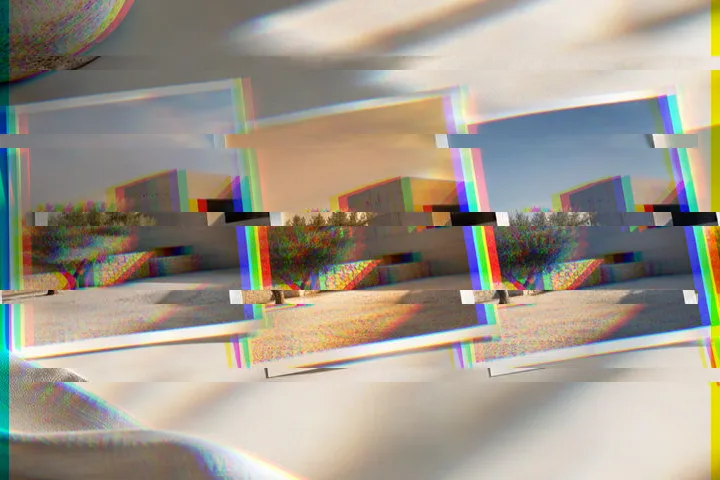 GlitchHorizontal scan bands, repeatable displacement and a controlled RGB split—four numbers instead…
 MosaicOne measured mean colour per square, separated by grout whose width and colour belong to you
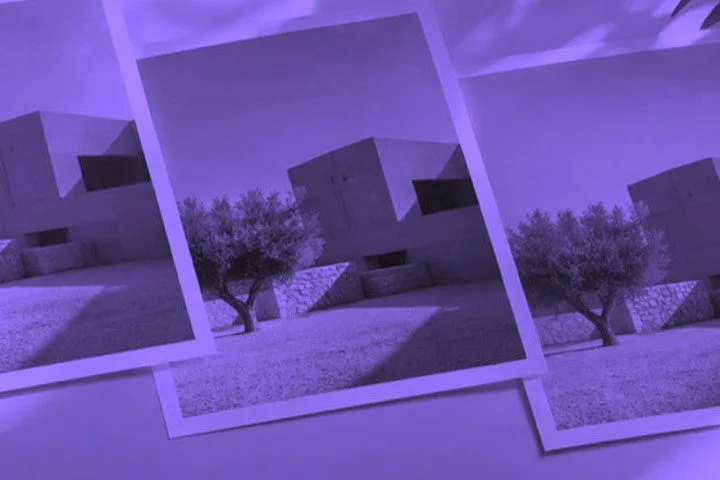 DuotoneThrow the colour away, then spend what is left on two inks and the ramp between them
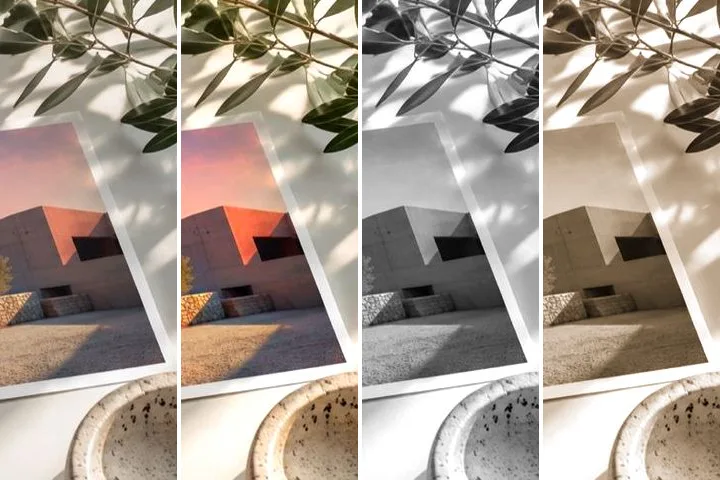 Filters
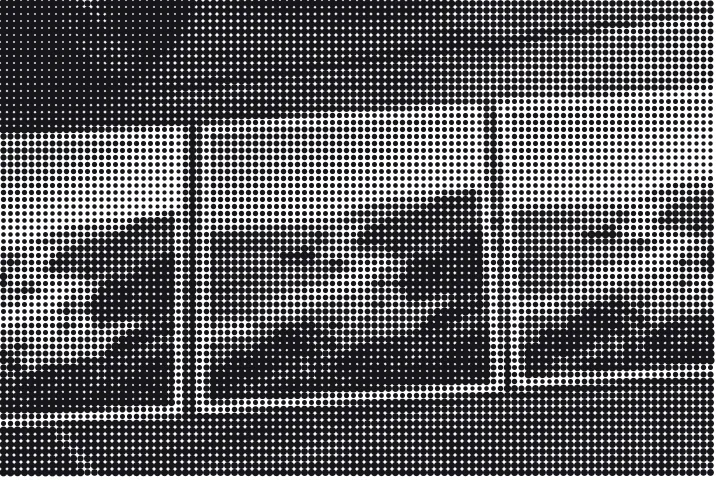 HalftoneA screen measures your picture cell by cell and draws one mark per cell whose area is the ink…
 PaintingSmooth regions, fewer colour steps and measured contour weight—a transparent construction…
Files it takes and files it gives back
JPG, PNG, WebP, AVIF and GIF go through the browser’s own image pipeline on everything this site supports. BMP, TIFF and ICO are handed to that same pipeline and open wherever it happens to know them — Safari reads TIFF, most others do not — and where it does not, you get a named refusal and a way back in rather than a blank canvas. HEIC, which is what a recent iPhone writes by default, has a WebAssembly decoder of its own: it is pulled in the first time one of those files is opened and is simply not on the page until then, so nobody who never opens a HEIC pays for it.
Four container details are worth knowing before you open something unusual. An orientation flag is read from the file’s own header and resolved before any measurement happens, because a screen angle on a sideways photograph is the wrong angle. An animated GIF or WebP comes in as its first frame and nothing else; the lab has no notion of a second one and does not say so on screen, which is a gap rather than a decision. Colour management is left entirely to your browser, so what a CMYK or wide-gamut file becomes before the kernels measure it is your decoder’s answer rather than this page’s. And a picture past roughly 32 megapixels (16 on iOS) is offered a lighter working copy as a choice; past 100 (40 on iOS) it is declined with its measured size named, because the tab will not survive it.
Out comes PNG, JPG or WebP, plus a plain text file when the effect is ASCII. PNG is the sensible default for the rebuilds; a colour look on a photograph is usually happiest as JPG. PNG and WebP keep transparency, JPG lays it on white, and none of the three carries the original’s EXIF or location data across. The render scale multiplies both the output dimensions and every length you set, so a halftone at 2× is the same halftone with four times the pixels per dot rather than a finer screen.
Two things this lab cannot do for you
Both are limits of the operations themselves, not of this implementation.
- None of this puts back detail the file never had. A halftone, a mosaic of blocks and a grid of characters are all forms of measured throwing-away, and each of them needs pixels to throw away in the first place. Under roughly 800 pixels on the long edge there is not enough to measure: the dots land on top of each other, the character grid reads as static, and the result looks like a small picture that has been damaged rather than like a deliberate style. The lab says so in its panel the moment such a picture opens, rather than after you have committed.
- Faces and small text come off worst, and nothing in the parameters will rescue them. Every effect here decides each cell from an average, and an eye is a handful of high-contrast pixels whose average is an unremarkable mid-grey — so it screens, dithers and blocks into nothing in particular, while the cheek beside it survives perfectly. If a portrait is the subject rather than the setting, expect to work at a much finer cell size than looks right elsewhere, and expect the eyes to go first.
Things people ask
- Is my photo uploaded?
- No. The photo is decoded in this tab, every filter runs on your device, and the file you download is written here too. There is no upload step and no server that could receive one.
- Can I see the filter on my photo before choosing?
- Yes — that is what the strip is. Every one of the 41 looks and 19 effects is drawn from the photo you opened, so you choose from results rather than from names or stock samples.
- How do I make the filter weaker?
- Drag sideways anywhere on the photo, use the Strength slider, or press 1 to 9 for 10% steps. Strength 0 is your photo exactly; 100 is the look as written. Tone controls then act after the filter.
- Does the saved file look the same as the screen?
- Yes. The strip, the preview and the export run the same code with the same settings; anything measured in pixels is converted to the export's size, and everything else is a fraction of the picture. A numerical check of that runs on every kernel.
- Will it keep my photo's size?
- Looks and colour finishes save at your photo's own size. Rebuilds like halftone can also render at 2× or 3× for print, and pixel art saves at true size or enlarged by whole numbers. No EXIF or location data is copied across.
- What is the difference between a look and a rebuild?
- A look keeps the photograph and changes its colour and mood — warmer, faded, black and white, like film. A rebuild remakes it out of something else — pencil lines, cartoon colour, printer's dots, pixels or characters. The strip labels which is which.
Picking a rebuild when there are too many
The strip shows you all 14 rebuilds on your own picture, which settles the question far better than a paragraph can. But people usually arrive with a destination rather than an effect in mind, so here is the mapping the other way round — what you are trying to end up with, and which rebuild is built for it.
| What you want out of it | Start with | Because |
|---|---|---|
| Something that will hold up as ink on paper | Halftone at 2× or 3× | It is the only one here invented for a press rather than a screen |
| A photograph that reads as a poster from across a room | Duotone, or posterise at four levels | Both collapse tone into a few decisive areas that survive distance |
| The smallest file that still looks deliberate | Dither at two or four colours, saved as PNG | Few colours and hard edges are exactly what lossless compression is good at |
| A subject reduced to flat blocks of its own colour | Pixelate, coarse | Each block is the mean of what it covers, so the look is built from the picture |
| Something to paste where pictures are not allowed | ASCII, plain text export | The text file and the picture are the same grid, written out two ways |
One caution on the fourth row, because it matters more than the rest: a block average is a style and not a way of removing information. The mean of a region carries real information about what was in it, and published work has recovered readable detail from pixelated pictures. Anything that genuinely must not be readable wants a solid shape over it, not an average of itself.
Every filter on this site
Each of these routes opens the identical lab in one mode, with its controls already on screen, for when you know the name of the thing you want. The guides carry the reasoning a control surface has no room for.
- Photo filtersThe 41 colour looks by family, previewed live on your photo, each one opening the lab already set.
- Photo to pencil sketchPencil, ink-line or colour sketch built from your photo's tones and edges.
- Cartoonize a photoFlat colour, a short palette and ink lines — a classical construction, not AI.
- Image to pixel artReal art pixels, real palettes, enlarged crisp by whole numbers.
- Black and white filterB&W looks plus a channel mixer with red, orange, yellow, green and blue filters.
- Sepia filterSepia, selenium, cyanotype or gold toning, split between shadows and highlights.
- Vintage photo filter70s, 80s, 90s, instant and old-print looks with fade, cast and grain.
- Film photo filterFilm looks with grain, halation and bloom forward.
- Aesthetic photo filtersSoft, faded, bright and moody looks, with lift, bloom and grain.
- Colour filterBlue, pink, purple, gold or any colour, by blend mode, brightness kept.
- Negative photo filterMake a negative, or turn a scanned film negative into a positive.
- VignetteDark or light corners with size, roundness, feather and a movable centre.
- HalftoneDots on a rotated screen, one plate or four, with the angles a press would use.
- DuotoneTwo colours and the ramp between them, rebuilt on every change to either end.
- DitherError diffusion and ordered matrices, at palettes from one bit upwards.
- PixelateSquare or hexagonal blocks, each one flat, with optional palette quantisation.
- PosteriseContinuous tone reduced to measured channel levels, with optional pre-dither.
- ASCIIA character grid that comes out as a picture or as a text file you can paste.
- GlitchRepeatable scan bands, displacement and channel separation.
- PaintingSmoothed regions, reduced colour steps and measured contour weight.
- MosaicMean-colour tiles with editable grout width and colour.
- Edge detectA Sobel luminance gradient map with threshold and inversion.
- Blur stylesSoft, horizontal and vertical averaging with a stated radius.
- The reasoningThree long answers to the questions a slider raises and a slider cannot settle.
There's no upload step on this page — your picture is decoded in the tab, drawn to a canvas, and gone the moment you close it.